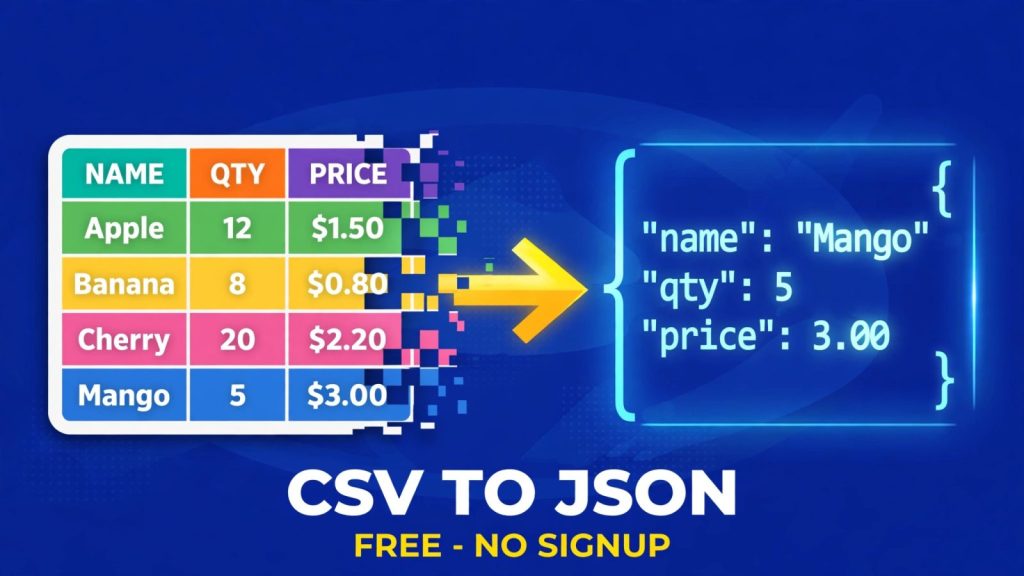
Every spreadsheet export, every database dump and every data file a client sends you seems to arrive as a CSV file, and every API, web app and JavaScript project wants JSON. Converting between the two should take ten seconds, yet most people still open a spreadsheet, fight with formulas, or install a tool they will use once. The fastest way is a free in-browser converter: open the CSV to JSON Converter, paste your table, and download clean JSON with no signup and no file upload. This guide shows you exactly how to do it, when the free tool is the right choice, and how to convert CSV to JSON with Python, Excel and Google Sheets when you need a repeatable workflow.
All facts, prices and free limits in this article were checked on 19 November 2026.
What CSV and JSON actually are

CSV stands for comma-separated values. It is the simplest way to store a table as text: one row per line, columns separated by commas, and an optional header row that names each column. Open a CSV file in any text editor and you can read it. That simplicity is also its weakness. A CSV file has no way to say whether 00721 is a number or a postcode, no way to nest data, and no built-in idea of data types at all. Every value is just text until something else decides what it means.
JSON, short for JavaScript Object Notation, is the format the modern web runs on. It stores the same table as an array of objects, where each row becomes an object and each column name becomes a key: {"name": "Alice", "age": 27, "city": "Berlin"}. Numbers stay numbers, true and false stay booleans, and values can nest inside each other, so one record can hold a list of phone numbers or an address object. That is why APIs return JSON, why JavaScript reads it natively, and why configuration files and NoSQL databases use it.
The two formats are not rivals. CSV is the best format for humans to edit in a spreadsheet, and JSON is the best format for software to consume. Conversion is simply the bridge between them, and the bridge only works well when the converter respects the rules of both sides. The CSV side is governed by RFC 4180, published by the IETF in October 2005, which says that any field containing a comma, a double quote or a line break must be wrapped in double quotes, and a literal double quote inside a field must be doubled. A converter that ignores those rules will silently split your addresses at the comma and corrupt your data.
Why you would convert CSV to JSON
Most conversions happen for one of five reasons, and knowing yours decides which method to pick. The first is feeding data to an API. REST APIs almost always accept JSON in the request body, so a product list exported from a shop system as CSV has to become JSON before any code can send it. The second is building a website or app: a JavaScript front end can fetch a JSON file directly, while a CSV file needs parsing code first. The third is testing. Developers paste a few rows of realistic data into a mock API or a test suite, and JSON is the shape those tools expect.
The fourth reason is moving data between systems that do not share a format. A marketing team exports contacts from a CRM as CSV, and the developer importing them into a new platform needs JSON. The fifth is cleaning and reshaping data: JSON makes it easy to rename keys, drop columns and nest related fields, which is awkward in a flat spreadsheet. If any of these sound familiar, the conversion is a real task, not a format trivia question, and it is worth doing with a tool that gets the edge cases right.
How to convert CSV to JSON free in 4 steps
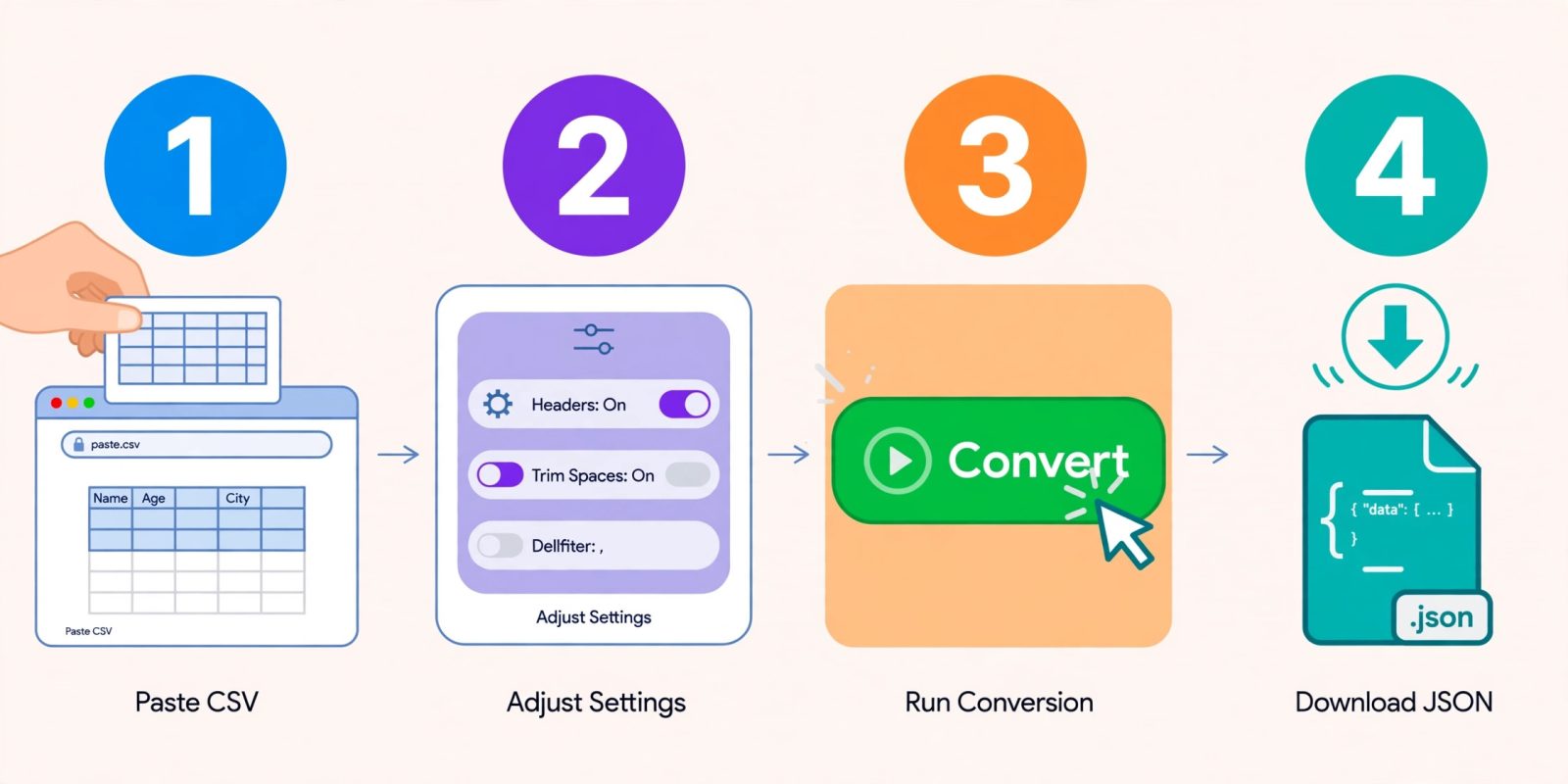
You do not need to install anything. The whole job runs in your browser with the CSV to JSON Converter, and your data never leaves your device, which matters when the file holds customer emails or prices. Here are the four steps.
Step 1: Paste your CSV or drop the file. Open the converter and paste your table straight from Excel or Google Sheets, or drop the .csv file onto the page. Copying from a spreadsheet works because Excel and Sheets put tab-separated values on the clipboard, and a good converter detects the delimiter automatically.
Step 2: Set the options. Tell the tool whether your first row is a header row. If it is, those values become the JSON keys. If it is not, the tool generates keys like column1, column2, or uses the first row as data. Pick your delimiter if the file uses semicolons or tabs instead of commas, which is common in European exports. Then decide on typed values: turning this on converts 27 to a real number and true to a real boolean, while leaving values like 00721 as strings so leading zeros survive.
Step 3: Run the conversion. The JSON appears instantly, as an array of objects, one object per row. Scan the first two or three objects. The keys should match your header row exactly, and the values should look like your data. If a column full of numbers came out as strings, or a postcode lost its leading zero, flip the typed-values option and convert again.
Step 4: Copy or download the result. Copy the JSON into your code or download it as a .json file. If you plan to check it in an editor, run it through the JSON Formatter and Validator first. A formatter that reports valid JSON saves you from debugging a missing comma inside your app later. That is the whole workflow, and for a one-off conversion it beats writing a script every time.
Convert CSV to JSON with Python
When the same conversion runs every day, a script beats a browser tab. Python ships with everything you need in its standard library, so there is nothing to install. The csv module reads the file and the json module writes it out:
import csv
import json

with open("customers.csv", newline="", encoding="utf-8") as f:
    rows = list(csv.DictReader(f))

with open("customers.json", "w", encoding="utf-8") as f:
    json.dump(rows, f, indent=2, ensure_ascii=False)
DictReader is the key detail. It reads the header row and turns every following row into a dictionary keyed by those headers, which is exactly the shape JSON wants. Two things to watch: open the CSV with newline=”” so the csv module handles line endings itself, and read with encoding=”utf-8″ so names with accents do not break. If your file has no header row, use csv.reader instead and zip the rows against a list of field names you define yourself.
For larger jobs, pandas does the same in two lines: pd.read_csv("customers.csv").to_json("customers.json", orient="records", indent=2). The advantage is not brevity, it is control: pandas handles mixed types, missing values and date parsing before the JSON is written. The disadvantage is a dependency and a heavier install. For a quick one-off file, the browser converter is faster. For a scheduled job that runs every night, the script is the right call, and the browser tool is still the fastest way to test the conversion on a sample before you automate it.
Convert CSV to JSON in Excel and Google Sheets
Sometimes the data lives in a spreadsheet and you want JSON without leaving it. Excel has no built-in “Save as JSON” button, so the practical routes are Power Query or a small script. In Power Query, load the table, then use the formula bar to shape it and export the result, or keep it simpler: save the sheet as CSV from Excel, then run it through the CSV to JSON Converter. The extra step takes seconds and avoids writing any code at all.
Google Sheets is friendlier. The simplest path is File, then Download, then Comma Separated Values, which gives you a clean CSV to convert. If you need JSON regularly from the same sheet, a short Apps Script can read a range and return JSON, but that is only worth building when the same sheet is converted weekly. For everyone else, the download-and-convert route is the honest answer: two clicks in Sheets, one paste in the converter, and you have valid JSON. Whatever route you pick, check the result the same way every time: open the JSON, confirm the keys match your headers, and confirm no value lost a leading zero or a decimal place.
7 mistakes that break your JSON
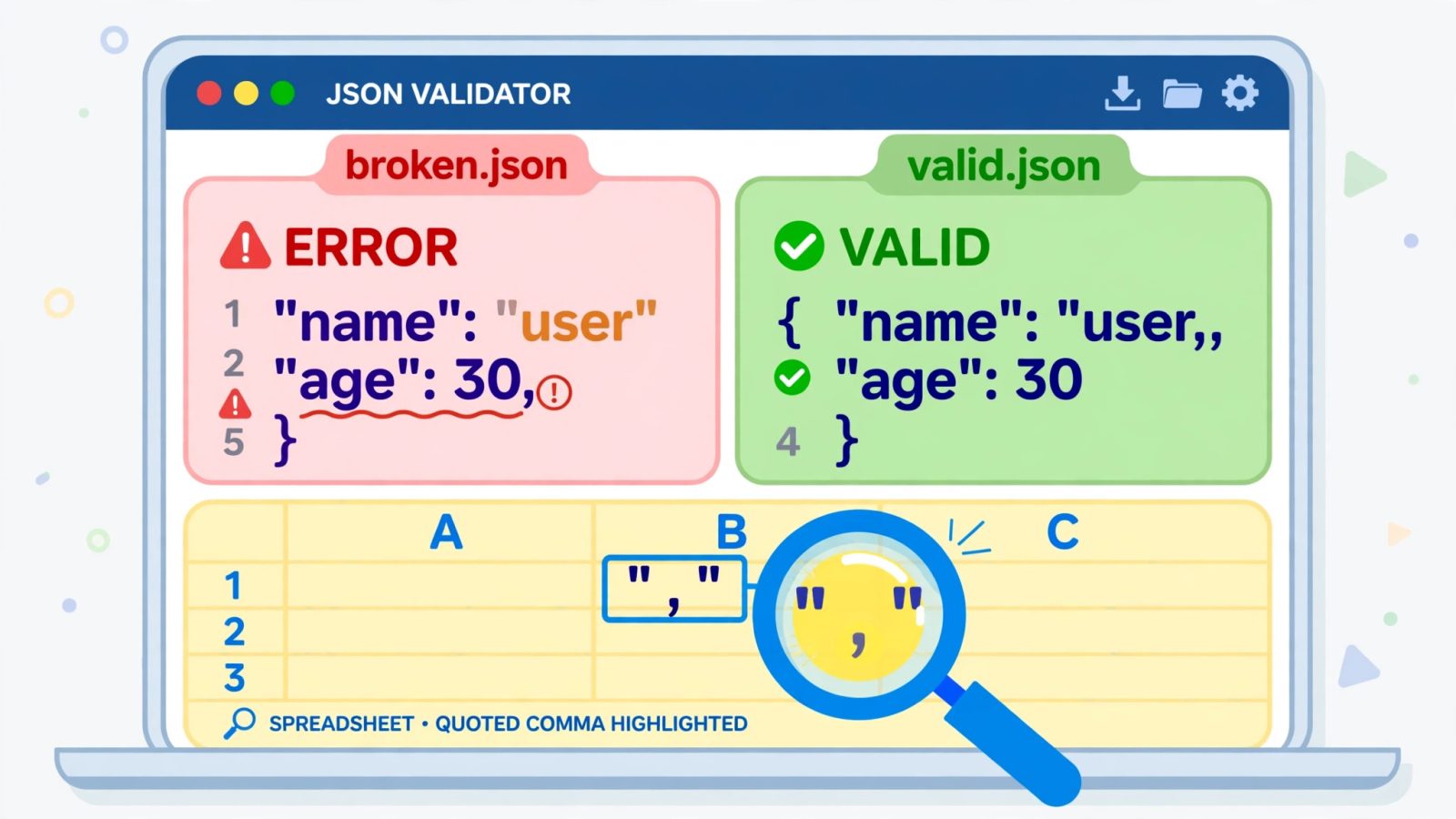
Most failed conversions are not the converter’s fault. They come from the CSV file itself, and all seven of these are easy to prevent once you know to look for them.
1. Unquoted commas inside fields. An address like “12 High Street, London” contains a comma. If it is not wrapped in double quotes, the parser sees two fields instead of one and every column after it shifts. This is the single most common cause of broken output, and it is exactly what RFC 4180 quoting exists to prevent.
2. Mismatched quotes. A single stray double quote, often from a product name like 24″ monitor, makes the parser treat the rest of the file as one long quoted field. The fix is to double the quote inside the field: 24″” monitor.
3. The wrong delimiter. Files exported in Germany, France or Brazil often use semicolons because the comma is the decimal separator there. If your output has one giant key containing the whole row, the delimiter is wrong, not the data. Switch it to semicolon and convert again.
4. Numbers that are not numbers. Postcodes, phone numbers, order IDs and SKUs look numeric but must stay strings. A converter with typed values turned on will turn 00721 into 721 unless it has leading-zero protection. Either turn typed values off or check the output for lost zeros.
5. A header row that is not a header. If the first row is a title like “Customer export – November 2026” instead of column names, your JSON keys become nonsense. Delete title rows before converting, or the keys will be wrong in every object.
6. Inconsistent columns. A row with four values under a five-column header produces an object with a missing key, and some tools silently drop the row instead. Count the columns in your longest and shortest rows before converting.
7. Skipping validation. JSON has strict rules: no trailing commas, double quotes only, no comments. Paste the result into the JSON Formatter and Validator before you hand it to an API. Ten seconds of validation saves an hour of debugging a 400 error.
CSV to JSON vs JSON to CSV: which direction do you need?
People search for both directions, and mixing them up wastes time. CSV to JSON is the direction this guide covers: you have a table and you need structured data for code, an API or a database. JSON to CSV is the reverse: you have an API response or a config file and you need a spreadsheet a human can edit or a system that only accepts CSV can import. If your JSON has nested objects or arrays inside it, the reverse trip needs flattening first, because a flat table cannot hold a list inside a cell without a workaround like joining values with a separator.
The good news is that the same site covers both directions. When you need to go back, the JSON to CSV Converter turns a JSON array back into a table, and the pair together means you never have to write a one-off script for either direction. Keep the two tools bookmarked side by side, because data work rarely travels in one direction for long.
Free CSV to JSON converters compared
There is no shortage of free converters, so the real differences are privacy, limits and how well they handle messy files. CSVJSON is one of the best-known options: it is free, runs entirely in your browser with no account, auto-detects comma, semicolon and tab delimiters, and protects leading-zero values like 00721 when its parse-numbers option is on. It also offers transpose, hash output and minify options that most converters lack. ConvertCSV is the power user’s choice: it is free, accepts pasted data, file upload or a URL as input, and offers keyed JSON, JSON Lines mode, nested objects from slash-separated headings and custom output templates, which is far more control than most people need but genuinely useful for odd formats.
Our own converter sits between them on purpose. The CSV to JSON Converter runs fully in your browser, so your data never uploads anywhere, it accepts pasted data or a dropped CSV or TSV file, lets you pick the delimiter, say whether the first row is a header, and choose typed values or plain strings, and it converts back the other way too. There is no signup, no daily limit and no account, which is the whole point: a conversion that takes ten seconds should not cost you an email address. For a quick one-off file, any of the three works. For sensitive data, pick one that runs in the browser. For a file with unusual delimiters or nested headings, pick the one whose options match your file.
One honest note on demand: “csv to json” is a small, focused keyword, around 2,400 searches a month worldwide with low competition, and the best-known converter pages still draw thousands of organic visits a month from it. That is exactly why a good free tool and a clear guide win here. The audience is developers, analysts and anyone moving data between systems, and they remember the tool that worked the first time.
Frequently asked questions
Is it safe to convert CSV to JSON online?
It is safe when the converter runs in your browser, because your file never uploads to a server. Avoid converters that ask you to upload a file containing customer data, emails or financial records to an unknown server. The converter on this site processes everything locally in your browser.
How do I convert a large CSV file to JSON?
Paste it or drop the file into the converter and let the browser do the work. For very large files, hundreds of thousands of rows or more, a Python script with the csv and json modules is more reliable, because browsers can slow down on huge pastes. Split the file into chunks if a single conversion feels slow.
Why did my numbers become strings in the JSON?
Because the typed-values option was off, or your numbers have leading zeros, commas or currency symbols that make them text. Turn typed values on for clean numbers, and keep it off when a column holds postcodes, phone numbers or IDs that must keep their exact characters.
Can I convert Excel files directly to JSON?
Not directly. Save the sheet as CSV first, from Excel or Google Sheets, then convert the CSV. The extra step takes seconds and it keeps your formatting problems visible before they reach the JSON.
What is the difference between JSON and JSON Lines?
Standard JSON wraps all records in one array, which most APIs expect. JSON Lines puts one complete JSON object on each line with no surrounding array and no commas between lines, which is better for streaming large datasets line by line. Pick standard JSON unless the system you are feeding specifically asks for JSON Lines.
Converting CSV to JSON is a ten-second job once you have the right tool and you know the seven mistakes to avoid. Keep the CSV to JSON Converter bookmarked, validate the output before you send it anywhere, and the next export that lands in your inbox will take you from spreadsheet to working JSON before your coffee cools.