A photo is a JPG. A form, a contract, a school application or a job portal wants a PDF. That mismatch happens every day, and the fix takes less than a minute once you know which tool to use. This guide shows you how to convert JPG to PDF free with no signup and no watermark, compares the free limits of the big converters, and covers the phone and offline methods for the days you have no internet. All prices and free limits in this guide were checked on 21 November 2026.
Before the steps, one quick bit of background. JPG is the format your phone and camera save photos in. The JPEG standard was first published in September 1992, and it is still the most used photo format on the web because it squeezes a photo down to roughly a tenth of its original size while keeping it looking the same to the human eye. A PDF, by contrast, is a fixed-layout document: it looks identical on every screen and every printer, which is exactly why banks, schools, employers and government portals ask for it. Converting a JPG to PDF does not change the photo itself. It places the photo on a page, at a size you choose, inside a document anyone can open.
How to Convert JPG to PDF Online in Seconds
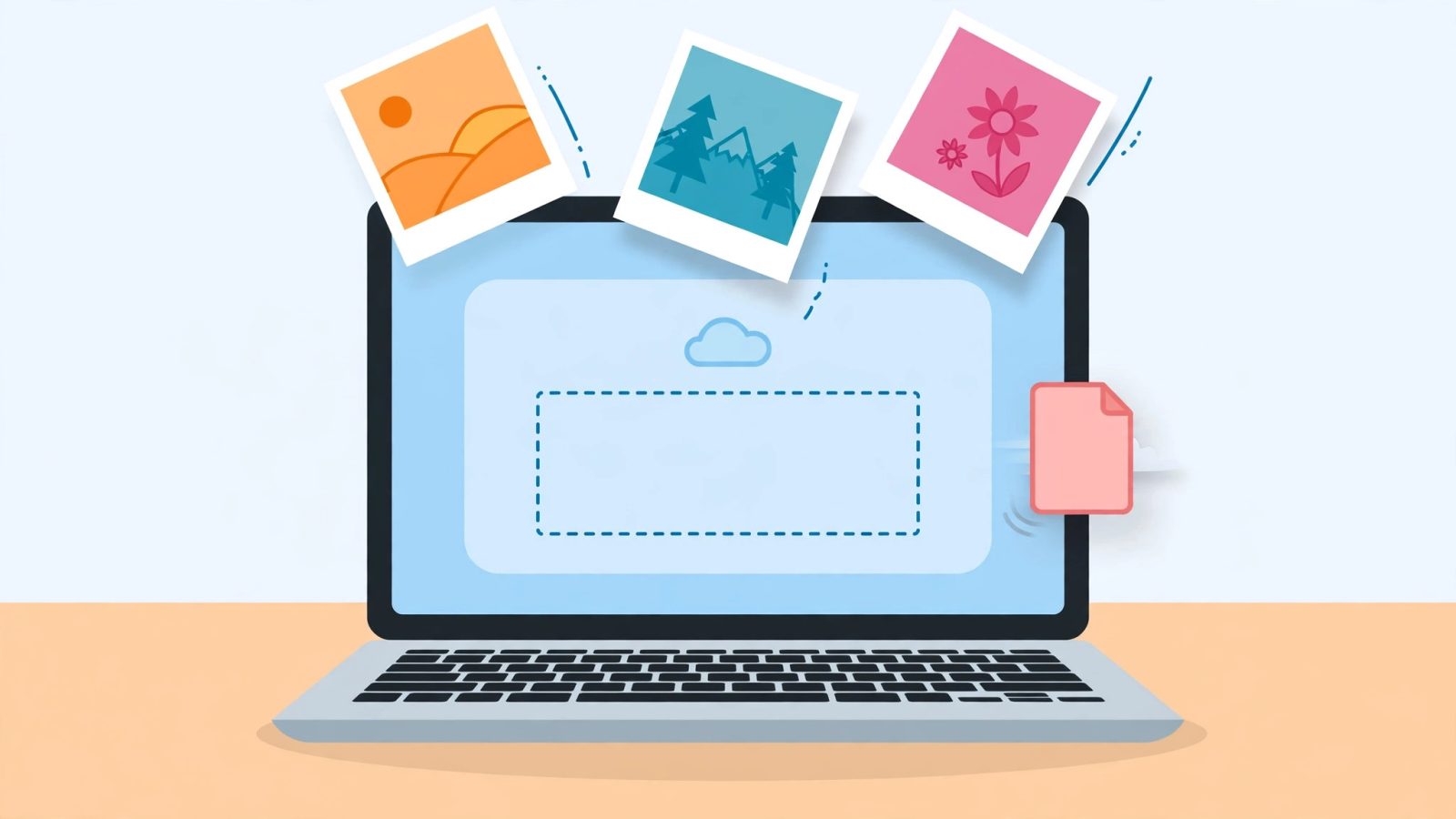
The fastest method is a free online converter that works in your browser. Our own JPG to PDF Converter does the whole job on your device, so your photos never leave your computer, and there is no signup, no daily limit and no watermark. Here is the exact process:
- Open the converter. Go to the JPG to PDF Converter in any modern browser. It works on Windows, Mac, Chromebook, Android and iPhone.
- Add your photos. Drag your JPG files onto the page, click to browse, or paste an image straight from your clipboard. You can add up to 200 images in one batch, in JPG, PNG, WebP, GIF or BMP format.
- Put them in order. Drag the thumbnails into the order you want the pages to appear. The first image becomes page one, so check the sequence before you convert – a CV with the photo on the wrong page looks careless.
- Pick the page settings. Choose A4 or Letter, portrait or landscape, and whether each photo should fit the page or fill it. If the PDF must stay under a size limit – many job portals cap uploads at 2 MB or 5 MB – set a target file size and let the tool shrink the images to hit it.
- Download the PDF. Click convert, then download. If you need one PDF per photo instead of a single combined file, switch on the one-PDF-per-image mode before converting.
The whole job takes about thirty seconds for a handful of photos. Because the conversion runs locally in your browser, a slow connection does not matter, and sensitive documents such as ID cards or medical forms are never uploaded to a server. If you later need the reverse direction, our PDF to JPG Converter turns PDF pages back into images the same way.
What Makes a Good JPG to PDF Converter
Every converter on the internet promises the same thing, so the differences are in the details. Judge any tool – ours or anyone else’s – on these five points before you trust it with your files:
1. Privacy. Most free converters upload your photos to their servers, process them there, and delete them later – usually after one or two hours. That is fine for a holiday photo, but think twice before uploading a passport scan, a bank statement or a medical form. A converter that works entirely in your browser, like ours, never uploads anything at all.
2. Batch size. Converting one photo is easy everywhere. Converting 40 scanned pages of a contract is where free tiers fall over. Check the maximum images per conversion before you start, or you will be splitting the job into pieces and merging them afterwards – which is doable with our Merge PDF tool, but slower than doing it once.
3. Page control. A good converter lets you choose page size (A4 or Letter), orientation, margins and whether the photo fits the page or fills it. A bad one stretches your photo to fill the page and distorts it. If your photo is landscape and the page is portrait, the tool should fit it with white space, not squash it.
4. File size control. A PDF made from twenty phone photos can easily reach 60 MB, and most upload forms reject anything over 5 or 10 MB. The best converters show a live size estimate and let you set a target size. If yours does not, shrink the photos first with our Image Compressor – it compresses to an exact file size – or read our guide on how to compress images without losing quality.
5. No watermark, no signup wall. Some “free” converters stamp their logo on your PDF, or let you convert once and then demand an account. Check the output before you rely on the tool for something official. A watermarked ID scan will be rejected by most offices.
Free Limits Compared: The Big Converters in 2026
We checked the free tiers of the four best-known converters against their own pricing pages and independent 2026 roundups, so you can see where each one stops being free. Prices and limits change, so treat this as a snapshot checked on 21 November 2026.
| Converter | Free limit | Paid plan | Privacy |
|---|---|---|---|
| AI Free Premium Tools | No daily limit, up to 200 images, 5 formats | None – free | 100% in-browser, nothing uploaded |
| Adobe Acrobat online | Free single conversions, no signup for basic use | Acrobat Pro $19.99/month, Standard $12.99/month | Files uploaded to Adobe servers |
| iLovePDF | No flat daily cap, but per-task file-size and batch limits (around 15-25 MB per file, about 20-25 images per batch in published tests) | Premium from $7/month | Files deleted within about 2 hours |
| Smallpdf | 2 free tasks per day across all tools | Pro $12/month | Files deleted after about 1 hour |
| Sejda | 3 free tasks per hour, no watermark | Paid plans from around $7.50/month | Web files held up to 2 hours |
Read the table the way a real user would. If you convert one or two photos a week, any of these works, and Adobe is the most trusted name. If you convert in batches – a scanned contract, a photo album, a set of receipts – Smallpdf’s two-tasks-a-day cap will stop you by lunchtime, and Sejda’s three-tasks-an-hour cap will make you wait between batches. iLovePDF is the most generous of the big names for frequent use, but its per-file size cap catches large phone photos. Our own JPG to PDF Converter has no daily cap and takes up to 200 images at once, which is why it is the practical pick for batch work – and because it runs locally, there is no upload queue and no deletion timer to worry about.
One more honest note: the big converters are genuinely good products, and Adobe invented the PDF format, so its output quality is excellent. The trade-off is always the same – your files go to their servers, and the free tier is designed to nudge you toward a subscription. If the document is ordinary and you convert rarely, use whichever you like. If the document is sensitive or the batch is large, a local converter is the better tool.
How to Convert JPG to PDF on iPhone and Android
Most JPG to PDF conversions start on a phone, because that is where the photos live. You do not need to install anything: both iPhone and Android have the feature built in, and our browser converter works on mobile too.
On iPhone: open the photo in the Photos app, tap Share, then tap Print. On the print preview, pinch outward on the thumbnail with two fingers – the preview opens as a full PDF. Tap Share again and save it to Files, send it by email, or open it in our JPG to PDF Converter if you want to combine several photos into one document. For several photos at once, select them all in Photos, tap Share, tap Print, and each photo becomes one page in the same PDF. One catch: iPhones save photos as HEIC by default, not JPG. If a website rejects your file, convert it first with our HEIC to JPG guide and converter, then make the PDF.
On Android: open the photo in Google Photos, tap Share, then Print, then choose “Save as PDF” as the printer. Pick the paper size, tap the PDF button, and save it. For a paper document rather than a photo, use the Google Drive app: tap the plus button, tap Scan, photograph the page, and Drive saves it as a PDF directly. If you need to combine several photos into one PDF on Android, open our JPG to PDF Converter in Chrome, add the photos, arrange them, and download – no app install needed.
Scanning tip: a photo of a paper document is not the same as a scan. Hold the phone parallel to the paper, fill the frame, and use good light from the side so your shadow does not fall on the page. Most scanner apps straighten the perspective automatically, but a tilted photo still produces a tilted PDF page. If a page comes out sideways, rotate the photo before converting, or the PDF will be sideways too.
How to Convert JPG to PDF Offline on Windows and Mac
When you have no internet – or when the file is too sensitive to upload anywhere – your computer already has everything you need.
Windows: open the photo in the Photos app and press Ctrl+P, or right-click the photo and choose Print. In the printer list, select “Microsoft Print to PDF”, choose the paper size and layout, and click Print. Windows asks where to save the PDF. For several photos, select them all in File Explorer, right-click, choose Print, and each photo becomes one page in a single PDF. The quality is good, but you get no control over compression, so a batch of phone photos can produce a very large file.
Mac: open the photo in Preview, then choose File, then “Export as PDF”. For several photos, select them all in Finder, right-click, choose Open With Preview, then in Preview’s sidebar select all the thumbnails and choose File, then “Print Selected Images”, then click PDF in the bottom-left corner and choose “Save as PDF”. Alternatively, open the photo in Preview and use File, then Export, to pick the quality. Mac’s built-in method is clean and reliable, and it preserves the photo’s resolution.
When offline is not enough: the built-in methods cannot shrink a PDF to a target size, reorder pages by dragging, or convert 200 photos at once. That is the point where a browser tool earns its place. Our JPG to PDF Converter runs offline after the page loads – it is still local processing, just with far more control than Print to PDF gives you.
6 Mistakes That Ruin Your PDF (and How to Avoid Them)
1. Converting a tiny photo and expecting a sharp page. A photo that is 800 pixels wide stretched across an A4 page will look blurry when printed, because A4 at 300 DPI needs 2480 by 3508 pixels. Check the photo’s size before converting: right-click the file and look at its dimensions. If it is under 1500 pixels on the long edge, keep the page small or accept some softness. Shrinking a big photo is harmless; stretching a small one is not.
2. Wrong page order. The most common error in multi-page PDFs is pages in the wrong sequence – usually because files were added in alphabetical order instead of the order they belong in. Always preview the thumbnail order before you hit convert. If a PDF already has pages in the wrong order, fix it with our Split PDF tool, which can extract or delete pages, or merge the pages again in the right order with our Merge PDF tool.
3. Sideways pages. Phone photos carry an orientation flag, and some converters ignore it. If a page comes out rotated, rotate the photo itself before converting rather than trying to fix the PDF afterwards. On Windows, right-click and rotate; on Mac, open in Preview and rotate; on a phone, use the edit button in Photos.
4. A PDF too big to upload. A 12-megapixel phone photo is typically 3 to 5 MB as a JPG. Twenty of them make a PDF of roughly 60 to 100 MB, and most upload forms cap files at 5 or 10 MB. Set a target size in the converter, or compress the photos first – our guide on how to compress images without losing quality shows the settings that keep photos sharp while cutting the size.
5. Mixing portrait and landscape photos on one page size. A landscape photo on a portrait page leaves large white bands at the top and bottom, and a portrait photo on a landscape page does the same on the sides. That is normal and harmless, but if it bothers you, use the “fit to page” setting rather than “fill page” – fill crops the photo, fit keeps the whole photo visible.
6. Using a watermarked converter for official documents. A free converter that stamps its logo on every page will get your application rejected by offices, universities and banks. Always check the first page of the output before you submit it. Our converter adds no watermark, and neither do Sejda or the free tier of Adobe’s online tool.
Frequently Asked Questions
Is converting JPG to PDF free? Yes. Our JPG to PDF Converter is completely free with no signup, no daily limit and no watermark, and it converts up to 200 images at once. Adobe, iLovePDF, Smallpdf and Sejda also offer free tiers, but each caps the number of tasks, the file size or the batch size.
Does converting JPG to PDF reduce quality? No, if the settings are right. The photo is placed on the page at its original resolution, so a sharp JPG stays sharp. Quality loss happens only when the converter recompresses the image to shrink the file, or when a small photo is stretched across a large page. Use the fit-to-page setting and a quality of 90 or above to keep the result crisp.
Can I convert JPG to PDF without uploading my photos? Yes. A converter that runs in your browser, like ours, processes the photos on your own device and never sends them to a server. Most well-known online converters upload your files, process them on their servers and delete them after one to two hours, so avoid them for sensitive documents.
How many JPGs can I put in one PDF? It depends on the tool. Our converter accepts up to 200 images in a single PDF. iLovePDF’s free tier allows about 20 to 25 images per batch in published tests, and Smallpdf allows 20 images per task but only two free tasks a day. For very large batches, split the job into several PDFs and join them with our Merge PDF tool.
What is the difference between JPG and PDF? JPG is a photo format: it stores a single image with lossy compression, which is why phone photos are JPG files. PDF is a document format: it stores pages that can contain images, text and vector graphics, and it looks the same on every device and printer. Converting JPG to PDF wraps your photo in a document page; it does not turn the photo into text. If you need the reverse, our PDF to JPG Converter extracts PDF pages as images, and our guide on how to convert PDF to JPG free explains the quality settings.
Can I convert JPG to PDF on my phone? Yes. On iPhone, open the photo, tap Share, tap Print, then pinch the preview to open it as a PDF. On Android, open the photo in Google Photos, tap Share, tap Print, and choose Save as PDF. For several photos in one PDF, use our browser converter on your phone – no app install needed.
Converting JPG to PDF is a thirty-second job once you have the right tool, and the only real decisions are privacy, batch size and file size. For a single photo, any free converter works. For batches, sensitive documents or files that must stay under an upload limit, use a local converter with no daily cap – our JPG to PDF Converter handles up to 200 images, five formats, target file sizes and one-PDF-per-image mode, all free and all in your browser. Try it with your next batch, and if you work with PDFs often, our guides on how to merge PDF files free and how to split PDF pages free cover the rest of the workflow.
All prices, file-size limits and free-tier details in this guide were checked on 21 November 2026 against the providers’ own pages and independent 2026 roundups.