You take a photo on your iPhone, send it to a friend on a Windows laptop, and it arrives as a file that will not open. Nothing is broken, and the photo is fine. Your iPhone saved it as HEIC, and the laptop simply does not know how to read that format. The fix takes less than a minute: convert the file to JPG, the format every device, website and printer on earth understands. This guide shows you how to convert HEIC to JPG free, with no signup, on Windows, Mac and iPhone – and how to stop your iPhone making HEIC files in the first place. The fastest way is our free HEIC to JPG Converter, which turns up to 30 iPhone photos into JPGs right in your browser, with no upload and no account.
All prices, limits and facts in this article were checked on 16 November 2026 against Apple Support, Microsoft Store listings and the converters’ own pages.
What Is HEIC, and Why Won’t Your Photos Open?
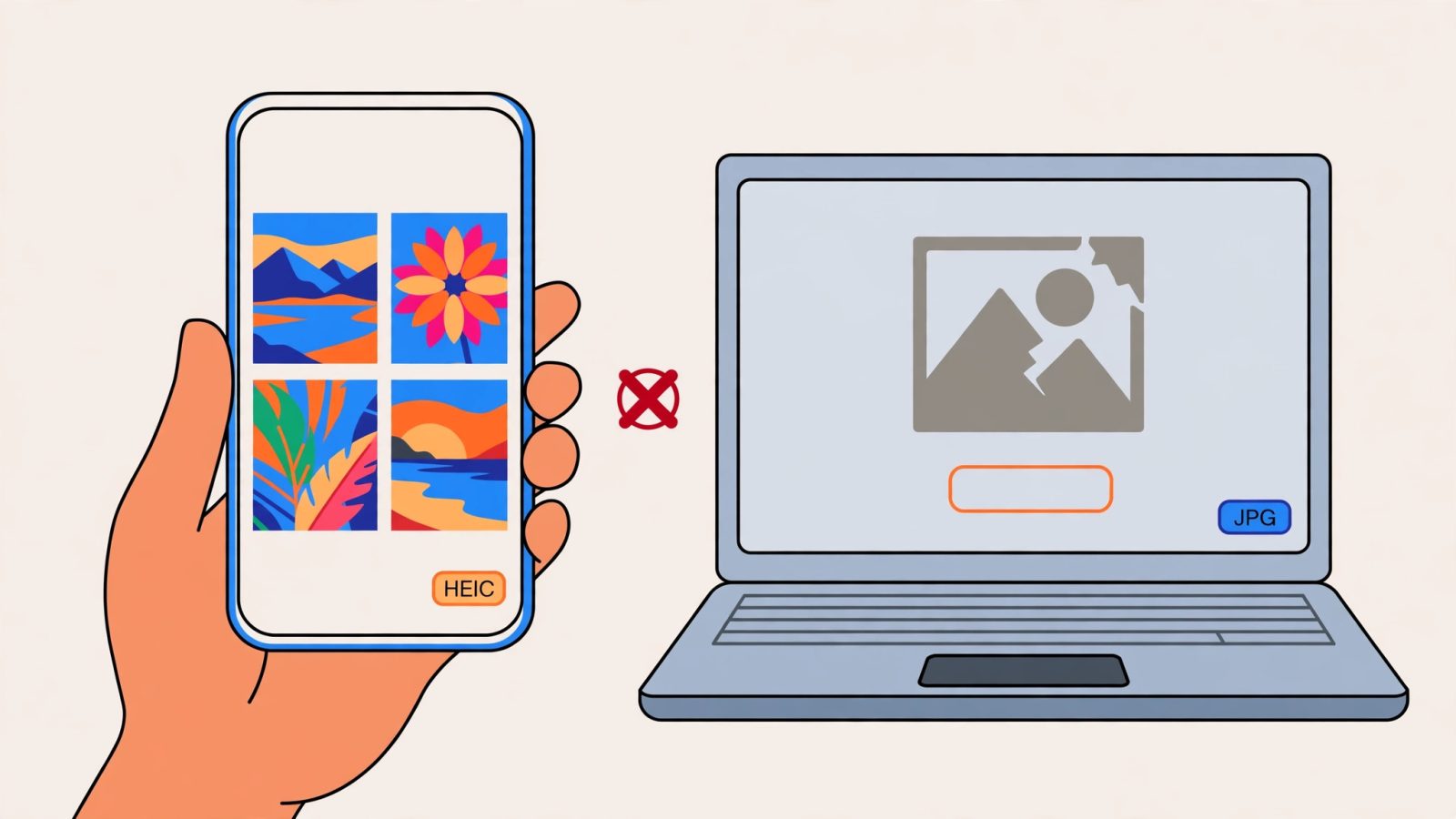
HEIC stands for High Efficiency Image Container. It is Apple’s version of HEIF, the High Efficiency Image File Format, an ISO standard (ISO/IEC 23008-12) that stores photos using HEVC, also called H.265 – the same compression technology behind 4K video streaming. Apple made HEIC the default photo format on the iPhone with iOS 11 in September 2017, starting with iPhone 7 and later models, and every iPhone since has shipped with it turned on.
The format is genuinely good. At the same visual quality, a HEIC photo is roughly half the size of the same photo saved as JPEG. Apple’s own WWDC 2017 presentation put it at about half the space, and the HEIF specification measures it more precisely: JPEG would need on average 139 percent higher bitrate, or 2.39 times the file size, to match HEVC’s objective picture quality. HEIC also stores 16-bit colour where JPEG is limited to 8-bit, so skies and gradients band less, and a single HEIC file can hold Live Photo frames, depth maps and edit history. On a phone that takes thousands of photos a year, half the storage is a serious argument, and it is why Apple made the switch.
The problem was never the format. The problem is compatibility. HEIC decoding needs a codec, and the HEVC codec carries patent licensing fees, so most of the computing world never shipped one. Windows 10 and 11 cannot open HEIC files out of the box. Chrome, Firefox and Edge cannot display a HEIC file in the browser at all – only Safari 17 and later opens HEIC natively. Most Android phones, website upload forms, print shops and older apps expect JPG and reject HEIC outright. That is why your photo opens perfectly on your iPhone and shows up as a grey icon everywhere else.
One thing worth knowing: when you share a photo from your iPhone by AirDrop, message or email, iOS often converts it to JPG automatically if the receiving device cannot read HEIC. So the files that cause trouble are usually the ones you transfer by cable, pull out of iCloud on a PC, or download from a cloud drive – the raw .heic files, straight off the phone.
The Fastest Way: Convert HEIC to JPG Free in Your Browser
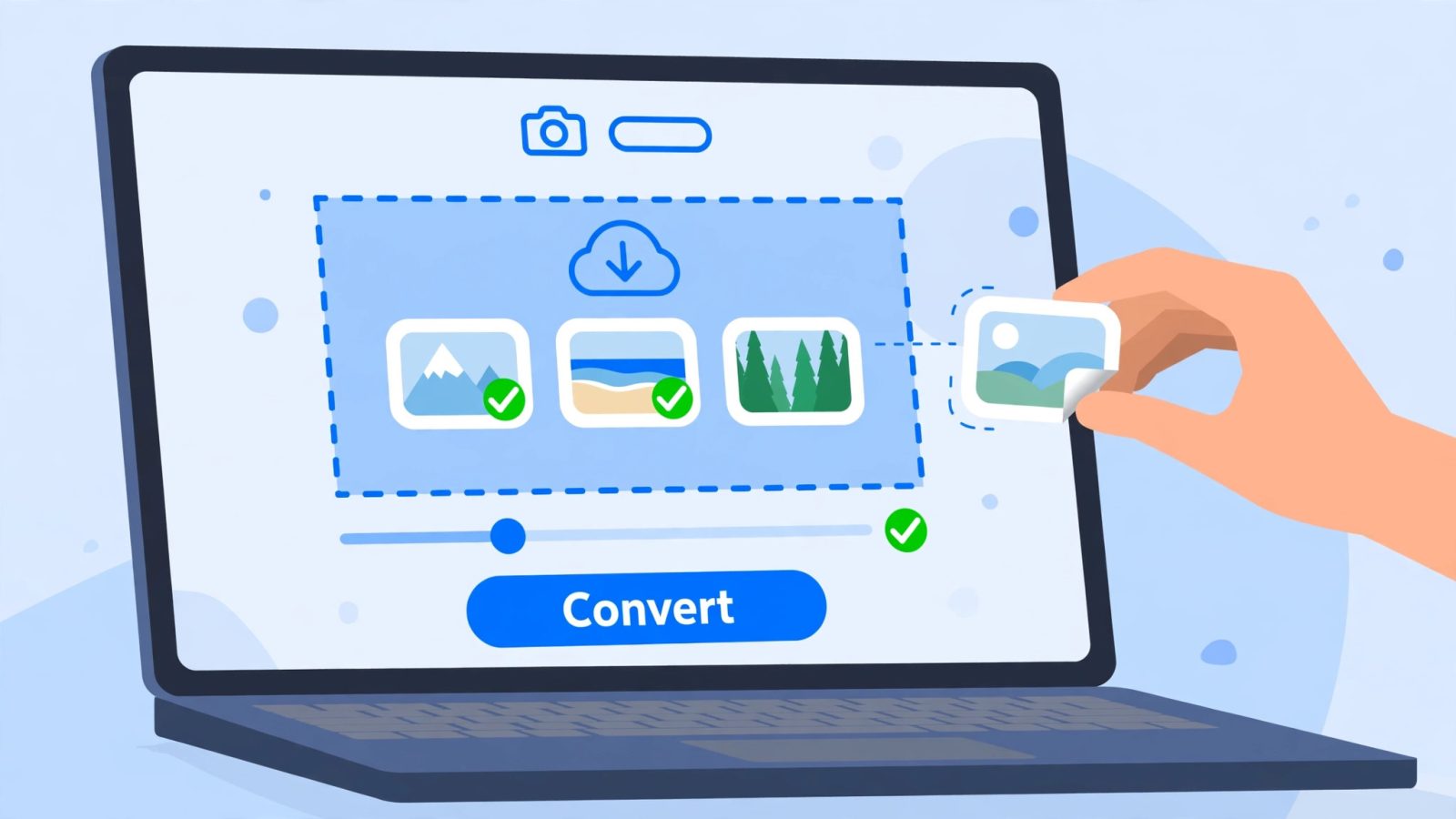
For most people, the quickest route is a browser converter that does the work inside the tab, with nothing to install and no photo uploaded to a server. Our HEIC to JPG Converter is free with no daily limit, needs no account, and converts batches in one go. Here is how it works:
- Open the HEIC to JPG Converter and drop your .heic or .heif files onto the upload box, or tap it to choose them from your gallery. You can add up to 30 photos at once.
- Pick your output: JPG for sharing, uploading and printing, PNG if you need every pixel kept exactly, or WebP for smaller files on websites. If you chose JPG or WebP, set the quality slider – 92 percent is a good balance of size and sharpness.
- Press Convert Photos. Each row shows its status, plus the before and after file size, so you can see exactly what the conversion saved or cost you.
- Download single photos, or take them all in one ZIP file. The settings you used are remembered on your device, so your next batch starts the way you like it.
The privacy point matters more with photos than with almost any other file type. Most “free online” HEIC converters upload your pictures to a server, convert them there, and ration free use. This one does the opposite: a decoder library called heic2any, built on libheif, the reference HEIF decoder, runs in your browser tab, reads the files from your own device, and saves the JPGs straight back to it. There is no upload because there is no server in the loop – load the page, switch your internet off, and it still converts.
One honest limit: very large batches use your device’s memory, so convert in smaller groups on an older phone. A damaged or half-downloaded HEIC file will fail to decode, and that is true of every converter, not just this one.
How to Convert HEIC to JPG on Windows
If you would rather use software already on your PC, Windows can do it – but only after you install two small extensions from the Microsoft Store. Windows 10 and 11 need the HEIF Image Extensions, which are free, and the HEVC Video Extensions, which cost $0.99 unless your PC maker already included them. Some machines, notably many HP and Dell laptops, ship with the HEVC codec preinstalled, so check before you pay.
Once both extensions are installed, the built-in Photos app can open HEIC files. Open the photo in Photos, click the three-dot menu, choose Save a copy, and pick JPG as the format. It works, but it converts one photo at a time, which is slow if you came home from a holiday with 200 photos. For a big batch, the browser converter above is far quicker: 30 photos in one go, no per-file clicking.
A second Windows route is to change how the photos arrive in the first place. On your iPhone, go to Settings, then Photos, then Transfer to Mac or PC, and set it to Automatic. With that on, the phone keeps HEIC internally for the storage saving, but converts photos to JPG automatically when you copy them to a PC over a cable. It does not help with photos already on your PC, and it does not change anything in iCloud, but it stops the problem repeating.
How to Convert HEIC to JPG on Mac
Mac users have it easiest, because macOS has read HEIC natively since High Sierra in 2017. The quickest method is Preview. Open the HEIC file in Preview, go to File, then Export, choose JPEG as the format, set the quality slider, and save. You can select several photos in Finder, open them all in Preview, and export them one by one – still one at a time, but each takes seconds.
The Photos app gives you a batch option. Select the photos you want, go to File, then Export, then Export Photos, choose JPEG as the photo kind, and pick a destination folder. Photos exports the whole selection as JPGs in one pass, which is the best built-in batch method on a Mac. If you also need to turn those JPGs into a document, our guide on how to convert PDF to JPG free covers the reverse direction, and the same batch thinking applies.
One Mac quirk to watch: exporting from Preview or Photos strips nothing important, but the exported JPG will be larger than the HEIC you started with – roughly twice the size at the same quality. That is the price of universal compatibility, and it is worth remembering before you convert an entire library. Keep the HEIC originals as your archive, and convert copies for sharing.
HEIC vs JPG: Which Should You Keep?
The short answer is both, for different jobs. HEIC is the better format for storage: same picture, about half the file, wider colour, Live Photos and depth data kept in one file. JPG is the better format for everything else: it opens on every device, every browser, every website upload form and every printer, and it has done since the early 1990s.
| Feature | HEIC | JPG |
|---|---|---|
| File size at same quality | About half of JPG | About double HEIC |
| Colour depth | 16-bit | 8-bit |
| Opens on Windows | Needs a $0.99 codec | Yes, always |
| Opens in Chrome, Firefox, Edge | No (Safari 17+ only) | Yes, always |
| Live Photos and depth data | Yes, in one file | No |
| Website uploads and print shops | Often rejected | Accepted everywhere |
| Editing without quality loss | Stores edit history | Each save loses a little |
Practically, that means: keep HEIC on your iPhone and in your iCloud library, where storage is precious and everything reads it. Convert to JPG whenever a photo leaves the Apple world – sending it to a Windows user, uploading it to a form, printing it, or posting it somewhere that might reject HEIC. And never convert your only copy and delete the original: converting HEIC to JPG is lossy, so if you edit the JPG later and save it again, you compound the quality loss. Convert a copy, keep the HEIC.
One more thing to check after converting: the JPGs will be bigger than the HEICs, sometimes twice as big. If the converted files are too large to email or upload, run them through an image compressor afterwards – our guide on how to compress images without losing quality shows how to shrink a JPG without visible damage, and the same quality slider thinking applies here.
How to Stop Your iPhone Saving HEIC Photos
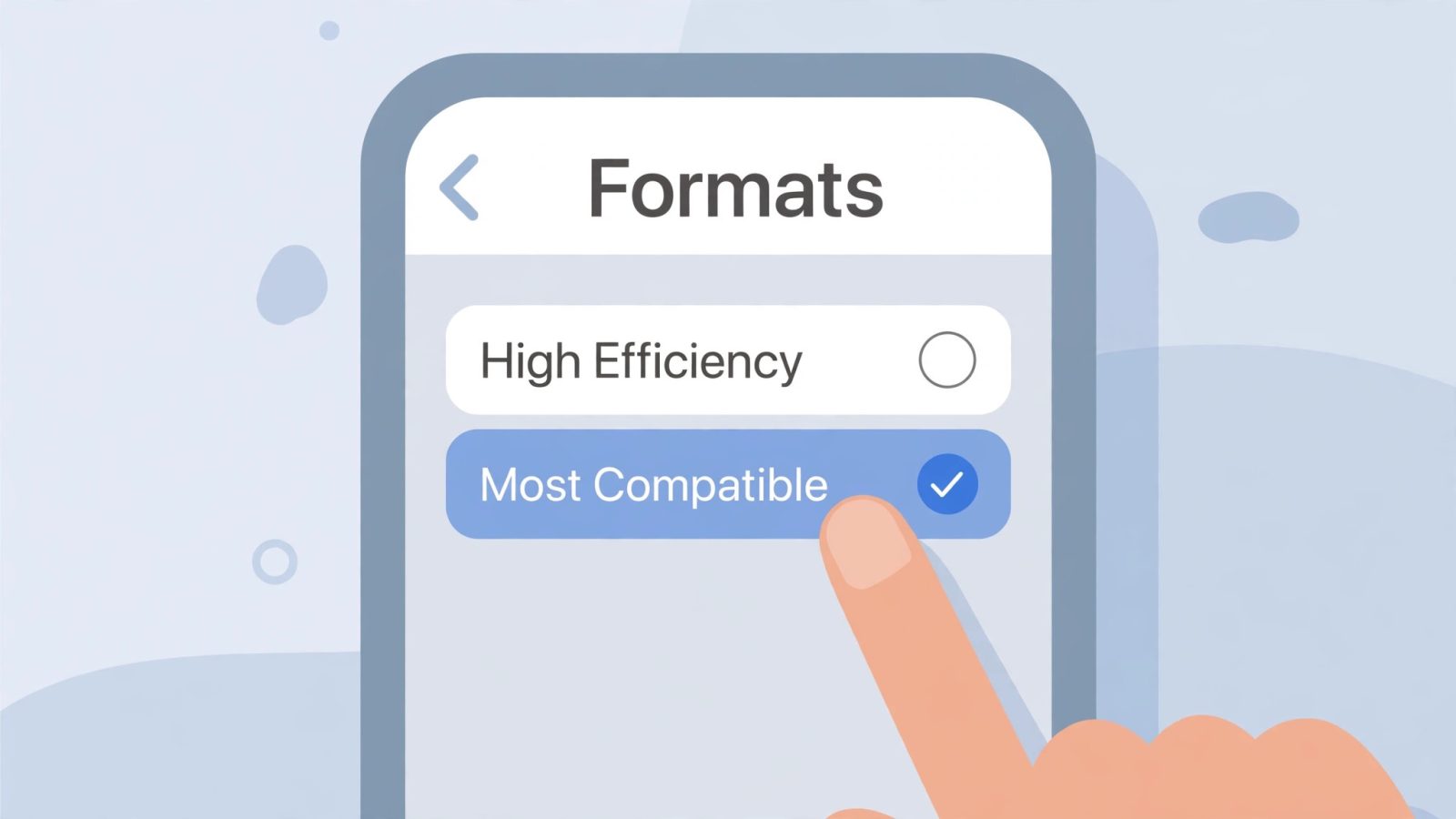
If you are tired of converting altogether, you can tell your iPhone to shoot JPG from now on. Open Settings, scroll to Camera, tap Formats, and choose Most Compatible. From then on the camera saves JPEG photos and H.264 video instead of HEIC and HEVC. Two things to know before you switch: this does not convert the photos you already have, which stay as HEIC, and your new photos will take roughly twice the storage, so a phone that is already short on space will fill up faster.
That trade-off is why most people should not switch. HEIC’s storage saving is real – on a 128 GB iPhone, shooting JPG instead of HEIC can easily cost you 10 to 20 GB over a year of photos. The better setup for most people is to leave High Efficiency on, keep the storage saving, and convert the few photos you actually need to share, which is exactly what the free HEIC to JPG Converter is for. Switch to Most Compatible only if you share photos with Windows users every day and the converting has become a daily chore.
There is one more setting worth checking while you are in there. Under Settings, then Photos, then Transfer to Mac or PC, make sure Automatic is selected rather than Keep Originals. Automatic converts photos to JPG during a cable transfer to a PC, so the files landing on your computer are already in the universal format, while the phone keeps the space-saving HEIC originals.
Free HEIC Converters Compared: What the Big Names Actually Limit
Not every “free” converter is free in the same way. The limits that matter are daily caps, file size caps, whether your photos are uploaded to a server, and whether you need an account. Here is how the well-known options compare, from their own pages as checked on 16 November 2026.
CloudConvert is the most powerful of the big names, with more than 200 formats and files up to 1 GB on its free plan, but free use is credit-based: its own connector documentation says 25 free conversions a day, and some independent comparisons list 10 a day, so a holiday batch of 200 photos will not finish in one sitting either way. Your files are also uploaded to its servers to convert. Convertio covers more than 300 formats and needs no account for basic use, but its free tier allows 10 conversions a day with a 100 MB file limit, and files are uploaded too. Canva converts images but always requires an account, and HEIC support is limited. Adobe Express needs an Adobe account and caps free files at 40 MB.
Against that, our HEIC to JPG Converter has no daily limit, no account, no file upload and no watermark, converts up to 30 photos per batch, and lets you pick JPG, PNG or WebP with a quality slider. Its honest limits are the ones that come with in-browser conversion: very large batches use your device’s memory, and a damaged file will not decode. For the job this article is about – getting iPhone photos to open on Windows – that is the better deal, and it costs nothing.
If you regularly convert other formats too, the same logic applies everywhere: prefer a converter that works in your browser and states its limits plainly. Our guides to merging PDF files free and splitting PDF pages free follow the same rule – free, no signup, and your files stay on your device.
Frequently Asked Questions
Is converting HEIC to JPG free?
Yes. Browser converters like the one on this site are completely free with no daily limit and no account. CloudConvert allows 25 free conversions a day and Convertio 10 a day, both with files uploaded to their servers. The only paid step anywhere in this guide is the $0.99 HEVC Video Extensions codec on Windows, and only if your PC maker did not preinstall it.
Does converting HEIC to JPG lose quality?
A little, yes. HEIC to JPG is a lossy conversion: the JPG is re-encoded from the decoded photo, so fine detail softens very slightly, and saving the JPG again later loses a little more. At a quality setting of 90 to 95 percent the difference is invisible in normal viewing. Keep the HEIC original as your archive and convert copies for sharing, and you will never notice.
Why does my iPhone save photos as HEIC?
Apple made HEIC the default with iOS 11 in September 2017 because it stores the same photo at roughly half the size of JPEG, with wider 16-bit colour and Live Photo support. It saves storage on your phone and in iCloud. You can change it under Settings, then Camera, then Formats, by choosing Most Compatible, but your photos will then take about twice the space.
Can I convert HEIC to JPG on my iPhone itself?
Yes. Open the converter in Safari on your iPhone, add your photos, and download the JPGs – it works in mobile browsers on iPhone and Android as well as on desktop. You can also use the Shortcuts app or the Files app: copy a HEIC photo into Files, long-press it, and choose the option to save it as an image, which produces a JPG in some iOS versions. The browser route is the reliable one.
Will the converted JPG keep my photo’s location and date?
It depends on the converter. Browser converters that decode in your tab generally do not carry EXIF data such as GPS location into the converted file, which is good for privacy when you share photos online. The date the photo was taken is usually preserved in the file’s own metadata or filename, but if the original date matters to you, keep the HEIC original.
How many HEIC files can I convert at once?
It depends on the tool. Our converter takes up to 30 photos per batch with a ZIP download for all of them. CloudConvert allows up to 5 files at once on its free plan, and Convertio allows 2 simultaneous conversions. For a full holiday album, do it in a few batches of 30 rather than one giant upload.
The Bottom Line
HEIC is a better format trapped in a compatibility problem: half the size of JPEG, wider colour, and everything Apple reads it – but Windows, Chrome, Firefox and most upload forms do not. You do not need to pay anything or install anything to fix it. Drop your photos into the free HEIC to JPG Converter, download the JPGs, and keep the HEIC originals as your archive. And if you never want to convert again, switch your iPhone to Most Compatible under Settings, then Camera, then Formats – just remember your photos will take about twice the storage from then on.