Three separate PDFs land in your inbox on the same morning: a signed contract, a scanned ID page and an invoice. Each one is fine on its own, and together they are a mess. Nobody wants to open three attachments to read one story, and nobody wants to forward three files when one would do.
Merging fixes that. It joins two or more PDF files into a single document, page after page, in the order you choose. The good news is that the basic job is free: our free Merge PDF tool combines up to 60 files in your browser with no signup, no watermark and nothing to install, and the whole job takes under a minute. This guide shows you how to do it, what the paid tools actually charge, and the five mistakes that ruin a merged file.
What merging a PDF actually means
To merge PDF files is to take two or more separate PDF documents and join them into one file. The pages keep their content, and they appear in the order you set: file one first, then file two, then file three. The original files are not changed. Merging creates a brand new file, so your originals stay exactly as they were, which means you can always go back and try a different order.
You will see the same job called combining, joining or binding PDFs. They are all the same thing, and any tool that says “merge” does it. Merging is not the same as converting. Converting changes a file from one format to another, while merging keeps the PDF format and only changes how many files there are. If you need a page as a picture instead of a document, our guide to converting PDF to JPG free covers that job.
People merge PDFs for ordinary reasons. A job seeker sends one file with a CV, a cover letter and two certificates instead of four attachments. A freelancer sends twelve monthly invoices as one tidy file. A student hands in a report, an appendix and a reference list as a single document. An accountant binds receipts and statements for a tax return. In every case the point is the same: one file is easier to send, store, print and find again than a scattered set.
Search data shows how common the job is. Monthly searches for “merge pdf” run to around 135,000 according to SEMrush figures, and Ahrefs data cited in 2026 puts searches for the same term at about 1.7 million a month in India alone. It is one of the most searched file jobs on the web, which is why so many tools offer it, and why so many of them charge for it.
How to merge PDF files free in 4 steps
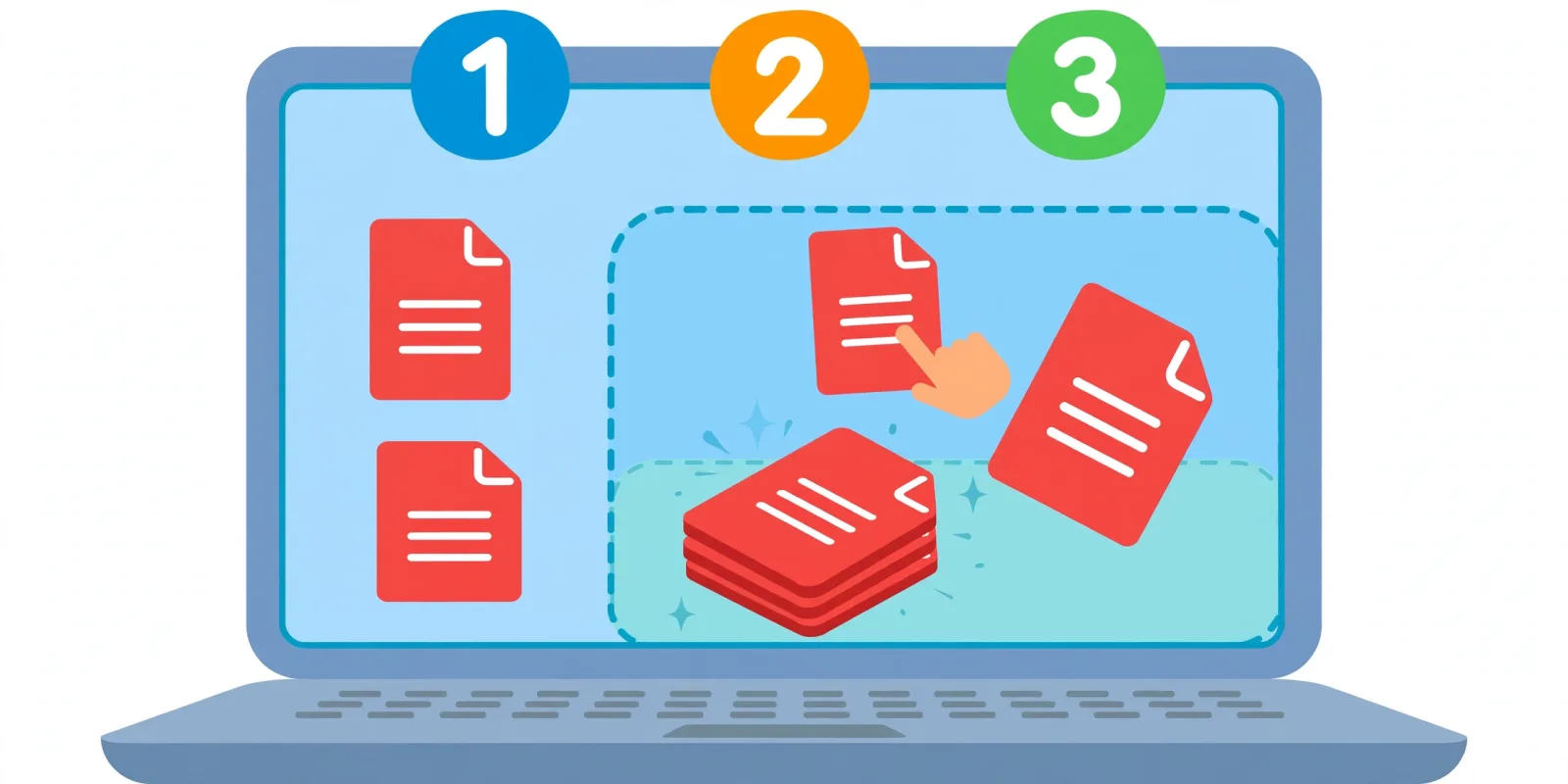
The fastest way to merge PDFs is a browser tool, because there is nothing to install and nothing to learn. Here is the whole job using our Merge PDF tool, from start to download.
Step 1: Open the tool. Go to the Merge PDF page. It works in any modern browser on Windows, Mac, Linux, iPhone, iPad, Android or a Chromebook. There is no account form and no download.
Step 2: Add your files. Drop your PDFs into the box, or pick them with the file chooser. You can add up to 60 files at once. Each one appears as a numbered row showing its page count and size, so you can see at a glance what went in. A file that is not really a PDF, or one that is password protected, is flagged right on its row, so you know before you merge, not after.
Step 3: Set the order and the pages. Use Up and Down on each row to arrange the files in the order you want. The number badge on the left always shows the position in the final document. If a file has pages you do not need, press Choose pages and click any page to cross it out; click it again to bring it back. This is the step most people skip, and it is the step that decides whether the result looks professional.
Step 4: Merge and download. Click the merge button and the combined file downloads in seconds. It arrives as merged.pdf, so rename it to something meaningful, like “Contract-and-Invoice-Nov-2026.pdf”, before you send it on. A clear name saves the next person from opening the file just to learn what it is.
That is the whole job. A two-file merge takes well under a minute, and even a 60-file merge is only a matter of waiting for the browser to finish reading the files.
Free vs paid PDF mergers: the honest comparison
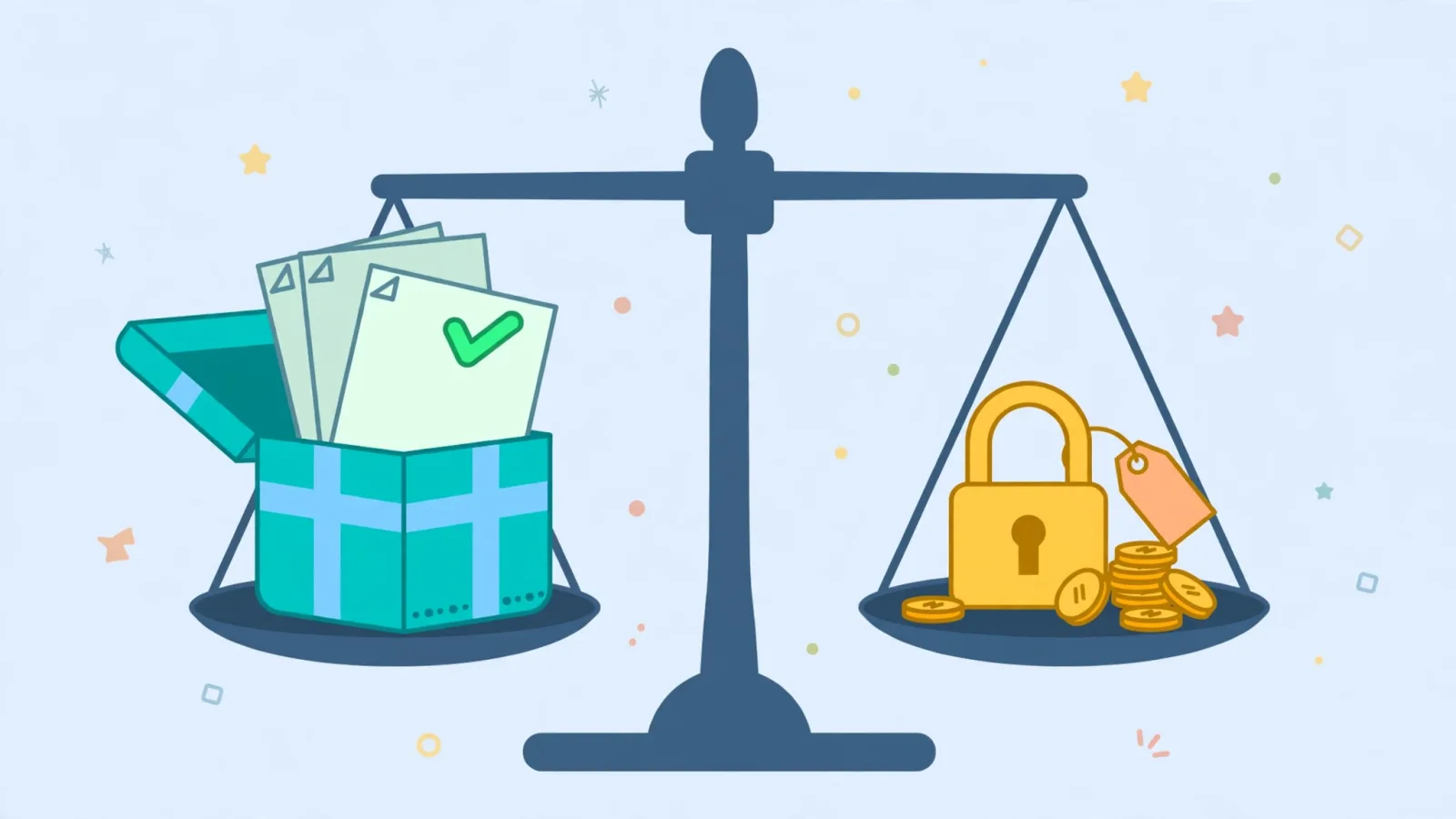
Almost every PDF site offers a free merge, and almost every one of them puts a limit somewhere. The word “free” splits into two very different deals, so here is what the best-known tools actually give you, with prices checked on 15 November 2026.
| Tool | Free tier | Price to remove the limits |
|---|---|---|
| AI Free Premium Tools Merge PDF | Up to 60 files, no signup, no watermark | Free |
| Smallpdf | 2 tasks a day | Pro $12 a month |
| iLovePDF | Limited file size and tasks per day | Premium from about $6 a month |
| Sejda | 3 tasks an hour, 200 pages or 50 MB per task | Premium $7.50 a month |
| Adobe Acrobat Pro | Online merge free, full desktop suite paid | Pro $19.99 a month, Standard $12.99 a month |
Smallpdf has the most polished interface of the big names. Drag and drop is smooth and reordering feels natural. The catch is the free tier: two tasks a day, which means merging one PDF and compressing one PDF uses up your whole day. Its Pro plan costs $12 a month and removes the limit.
iLovePDF is the most popular of the group and covers merge, split, compress, convert and more. The free tier caps file sizes at around 100 to 200 MB per file and limits how many tasks you can run, so a big scanned archive can stop you cold. Premium starts at about $6 a month on an annual plan and removes the caps.
Sejda is the most generous of the big freemium tools, with 3 free tasks an hour and no watermark on output. Each task is capped at 200 pages or 50 MB, which is fine for everyday documents. Premium is $7.50 a month, the cheapest paid option in this group.
Adobe Acrobat Pro is the full professional suite, and it costs $19.99 a month, or $239.88 a year. Acrobat Standard is $12.99 a month. The online merge tool itself is free, but editing, organising pages and the desktop app all sit behind the subscription. Acrobat Pro is worth the money only if you edit PDFs every day for work; for the job of joining files together, it is far more than you need.
Our own Merge PDF tool sits on the genuinely free side of the split: up to 60 files in one merge, page selection included, no account, no watermark and no daily task count to manage. If you only need to merge files, there is no reason to pay a monthly subscription for it.
5 problems that ruin a merged PDF (and the fix for each)
Merging is simple, but a merged file can still come out wrong. These are the five problems that cause nearly every bad result, and each one takes seconds to avoid.
1. Pages in the wrong order. This is the most common mistake. The contract ends up after the invoice, or the cover letter lands in the middle. Fix it before you merge: check the numbered rows in the tool, and name your files 01, 02 and 03 so the order is obvious. Read the order once more before you click merge, because fixing it after means doing the whole job again.
2. Upside-down or sideways pages. Scanned pages often arrive rotated, and a merged file keeps the rotation. Open each file before you merge and look at the first page. If a page is sideways, rotate it in your PDF viewer first, then merge. A two-second check saves a document that looks careless to everyone who opens it.
3. A giant file. Scanned pages are heavy, and ten scanned documents can merge into a file too big to email. The fix is to merge only the pages you need. Use the page picker to cross out blank pages, duplicates and pages that do not matter. A smaller file sends faster, opens faster and is less likely to bounce back from an inbox with a size limit.
4. A password-protected file blocks the merge. A locked PDF cannot be merged until it is unlocked, and most tools fail silently or stop halfway. Our tool flags a locked file on its own row before you start, so you can unlock it first or leave it out. If you do not have the password, ask the person who sent the file; there is no honest shortcut around a password you do not own.
5. A watermark appears on the result. Some free tools stamp their name across your pages, which looks bad on a document you send to a client or an employer. Check the output before you send it. Our tool adds no watermark at all, and with the paid tools the watermark disappears only when you pay, so pick a tool that is clear about this before you start.
How to merge PDFs on Mac, Windows and phone
The browser method in this guide works the same on every device, because the tool runs in the browser and not in an app you install. That makes it the simplest option on a phone, where installing a PDF app for a one-minute job is rarely worth it. Open the tool in your phone browser, add the files from your device, set the order, and download the result.
On a Mac there is also a built-in option. Preview, the app that opens PDFs by default, can combine documents: open the PDFs in Preview, show the thumbnail sidebar, and drag pages from one document into another in the order you want. It is free and it works offline, but it is slower than a browser tool when you have more than a few files, and dragging thumbnails on a trackpad is fiddly.
On Windows there is no built-in merger in the same way, so the browser tool is the practical choice. The old alternative is a desktop program such as PDFsam Basic, which is free and open source and runs on Windows, macOS and Linux with no watermarks and no limits. It is a good pick if you merge PDFs every day and want an offline tool, but for a one-off job the browser is faster.
Whatever device you use, the rule is the same: the merged file is only as good as the order and the pages you put into it. Check both before you merge, and check the result once after.
Is it safe to merge PDFs online?
It depends on where the merging happens. Most of the big names are server tools: your files travel to their computers, get merged there, and come back to you. iLovePDF says files are deleted after 2 hours, and Smallpdf deletes free-tier files after 1 hour. That is normal for the industry, but it still means your document passes through infrastructure you do not control.
Browser tools are different. The work happens on your own device, so a contract, a tax return or a medical record never leaves your machine. That is the safer choice for anything sensitive, and it is also faster for large files because there is no upload and no download wait.
The practical rule is simple. For everyday documents such as schoolwork, invoices and public reports, any reputable tool is fine. For anything with personal data, passwords, signatures or client information, use a browser tool or a desktop app you trust, and skip any service that asks you to create an account just to merge two files. A free merge should never cost you your privacy.
Frequently asked questions
Is merging PDF files really free? Yes. Merging is one of the simplest PDF jobs, and several tools do it for free with no signup. Our Merge PDF tool is free with up to 60 files per merge and no watermark. The paid tools charge for extras such as editing, OCR and cloud storage, not for the merge itself.
How many PDFs can I merge at once? It depends on the tool. Ours takes up to 60 files in a single merge. Smallpdf free users get 2 tasks a day, and Sejda free users get 3 tasks an hour with a 200-page or 50 MB cap per task. If you regularly merge more than a handful of files, pick a tool with a high file count rather than a high task count.
Does merging change my original files? No. Merging reads your files and writes a new, separate document. Your originals stay untouched on your device, so you can merge the same files again in a different order any time.
Can I merge a password-protected PDF? Not until it is unlocked. A locked file will block the merge in almost every tool. Unlock it with its password first, then add it to the merge like any other file.
Will the merged PDF have a watermark? Not if you use the right tool. Our tool adds no watermark. Some free tiers of other tools do stamp their name on the output, so always open the merged file and check the first page before you send it to anyone.
Can I merge PDFs on my phone? Yes. Open a browser-based merger on your phone, add the files from your device, set the order and download the result. There is no app to install, and the job works the same on iPhone and Android.
What is the largest file I can merge? There is no single answer, because every tool sets its own cap. iLovePDF free caps files at around 100 to 200 MB, and Sejda caps each task at 50 MB. Very large scanned files take longer in any browser tool, so if a merge feels slow, split the job into two smaller merges and then merge the two results.
Merging PDFs is a five-minute skill that saves hours over a year: one file instead of many, sent once, stored once, found once. The next time three PDFs arrive for the same job, open our free Merge PDF tool, add the files, set the order, and send a single clean document.
All prices and free-tier limits in this article were checked on 15 November 2026 against the vendors’ own pricing pages and independent comparisons. Plans change, so check the tool’s own page before you pay.