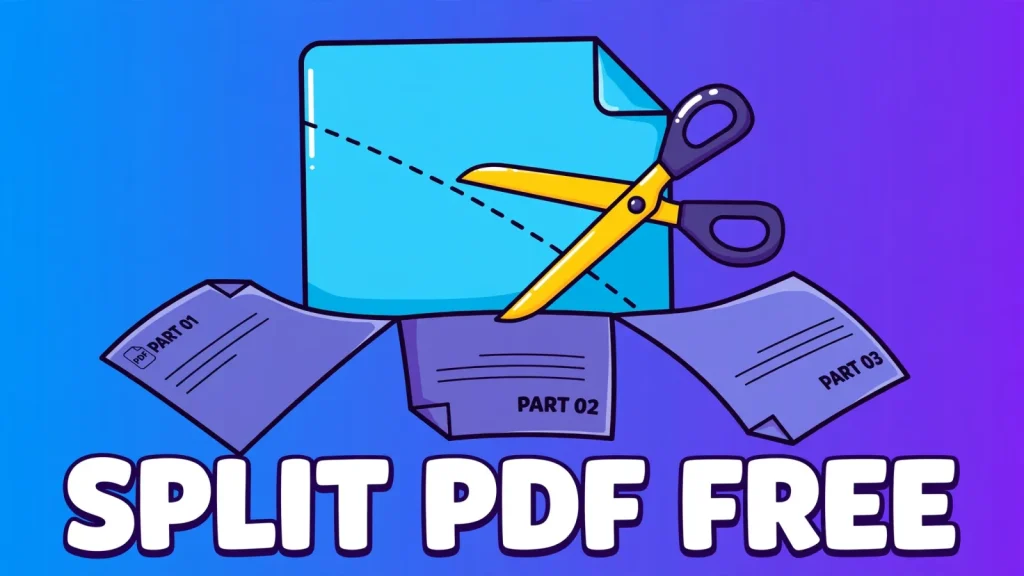
You have a 40-page PDF and you only need pages 5 to 9. Or a month of invoices arrived as one giant file and each client should get only their own pages. Or a form portal accepts 10 pages and your scan has 42. In every case the fix is the same: split the PDF into the pieces you actually need. This guide shows you how to split PDF pages free, with no signup and no software to install, using the Split PDF tool on this site, which runs entirely in your browser. It also compares the free limits of the big online splitters, so you can pick the right one for your file.
What splitting a PDF actually means
Splitting a PDF means producing two or more new PDF files from a single source file, each holding a subset of the original pages. The page content itself is not changed: text, images and layout stay exactly as they were. What changes is which pages end up in each new file. Extracting pages is the close cousin of splitting. When you extract, you keep the pages you pick in one new file and drop the rest. When you split, you cut the document into several files, for example one file per chapter or one file per page.
People usually reach for a splitter for one of four reasons. The first is size. Many email providers cap attachments at 25 MB, and Gmail is one of them, so a 60 MB report simply will not send until it is cut into smaller pieces. The second is a form portal or upload box that accepts only certain pages, such as the signature page of a contract or the transcript page of an application. The third is privacy: a document needs to go to three different people and each should see only their part. The fourth is focus. A teacher cuts one worksheet out of a long workbook, a student pulls the references section out of a thesis to keep it open beside a draft, and a freelancer pulls the one approved page out of a signed agreement.
None of this needs paid software. Every major PDF site offers a free split, and several free tools run entirely in your browser. The differences that matter are not the buttons. They are what happens to your file, what the free version caps, and whether an account is required. This guide covers all three.
Five ways to split a PDF (and which one fits your job)
Most splitters offer one or two ways to cut a file. The tool on this site offers five, and picking the right one saves you a second pass.
Extract pages keeps only the pages you pick and drops the rest. Use it when you know exactly what you want to keep, such as pages 1 to 5 and page 9 of a report. Delete pages works the other way round. You tap the pages you do not want, they turn red, and everything else stays. This is the faster choice when the unwanted part is small, such as a blank back page, a cover sheet, or two pages of terms you do not need to forward.
Split every page gives you one PDF per page, packed into a ZIP file. It is handy for scanned batches where each page is really its own document, such as a stack of receipts scanned in one go. Custom parts turns each range you type into its own file. Typing 1-3, 4-6, 9 produces three PDFs: one with pages 1 to 3, one with pages 4 to 6, and one with page 9. Every N pages cuts the document into equal chunks. A 12-page PDF split every 5 pages gives files of 5, 5 and 2 pages, which is the quickest way to break a long document into email-sized pieces.
If you are unsure which mode to pick, ask one question: do you want one file or several? One file means extract or delete. Several files means custom parts, every N pages, or split every page. That single question settles it in almost every case.
How to split PDF pages free in 4 steps
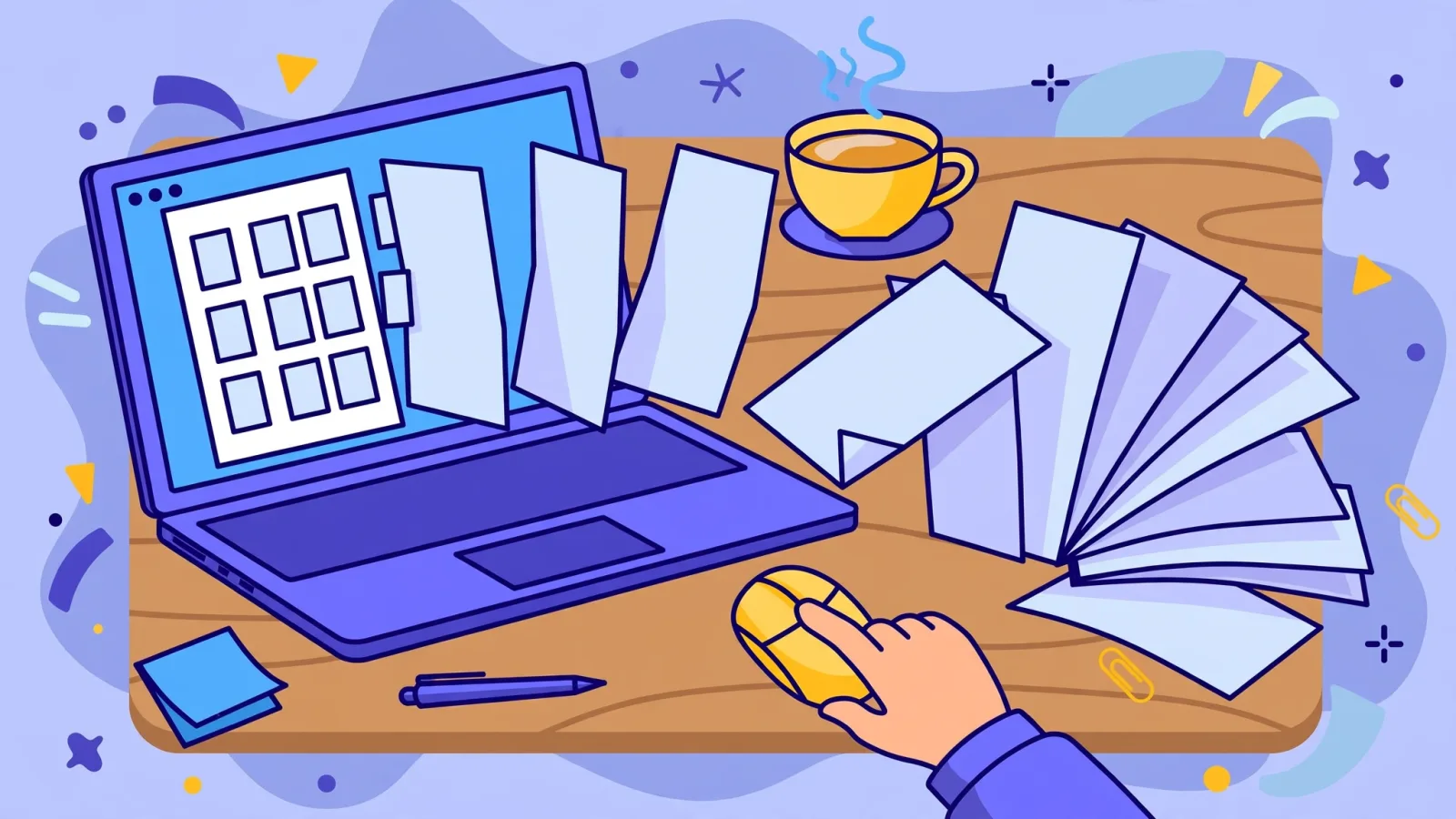
The whole job takes under a minute once you know the pages you want. Here it is with the free Split PDF tool, which needs no account and uploads nothing.
Step 1: Open the tool and drop in your PDF. Open the Split PDF page and choose your file. It is read by your browser tab, not sent to a server, so contracts, medical letters and ID scans stay on your own device.
Step 2: Pick a mode and type your ranges. Choose Extract, Delete, Split every page, Custom parts or Every N pages. For ranges, commas separate pieces and a dash joins a start and an end, so 1-3, 7, 10-12 means pages 1, 2, 3, 7, 10, 11 and 12. An open end works too: 5- means page 5 through the last page. If you would rather not type, tap the page buttons instead. Shift-click selects a whole run in one go, and the chips above the grid select all, none, odd, even, or the inverse of what you have.
Step 3: Check the page count line before you build. The range box and the buttons stay in sync, and a line under them tells you how many pages you are keeping. This is where mistakes get caught. A typo such as 1-99 on a 12-page file is flagged before anything is built, so you never download a file and only then notice a page is missing.
Step 4: Download your files. Press the button and the new PDF is built in your browser. If the split produced several files, they arrive together as a ZIP. Rename them right away if the names matter, because a file called split-part-2.pdf is easy to lose track of a week later. If you ever need to put files back together again, the reverse job is covered in our guide on how to merge PDF files free, which uses the same in-browser approach.
Free limits compared: iLovePDF, Smallpdf, Sejda, Adobe and PDF24
Every free splitter has a ceiling. The ceiling is usually a file size, a page count, a number of tasks per day, or a mix of all three, and it changes without much warning. The figures below were read from the vendors’ own pages and from independent 2026 comparisons on 16 November 2026. Check the vendor’s own page before relying on a figure for a file that matters.
| Tool | Free ceiling | Signup needed? | Where the file is processed | File deleted after |
|---|---|---|---|---|
| Split PDF (this site) | 300 MB per PDF, no page limit | No | Your browser only | Never uploaded, so nothing to delete |
| Smallpdf | 2 free tasks per day | No for the free tier | Their servers | 1 hour |
| iLovePDF | Free tier caps file size and processing | No for the free tier | Their servers | Within 2 hours |
| Sejda | 200 pages or 50 MB, 3 tasks per hour | No | Their servers | 2 hours |
| Adobe Acrobat online | Up to 1,500 pages, up to 20 outputs | Yes, an Adobe ID | Adobe cloud | 24 hours |
| PDF24 Tools | No fixed limit stated | No | Their servers | Shortly after download |
Read the table by your constraint, not by brand. If your file is over 50 MB, Sejda’s free tier will refuse it and Smallpdf’s daily cap may stop you on the second file, while a browser tool with a 300 MB limit or PDF24 will take it. If the file is sensitive, the upload column matters more than the size column: Smallpdf, iLovePDF, Sejda, Adobe and PDF24 all process your file on their servers, and each keeps it for a stated window, from one hour to 24 hours. If you split PDFs every day, the task cap matters most, and a tool with no daily cap wins even if its interface is plainer.
One more option belongs in this list for large files: PDFsam Basic. It is a free, open-source desktop app for Windows, macOS and Linux, developed since 2006, with no file size limit and no watermarks. It needs an install, so it is slower to start, but for a 500-page file it is the most reliable free choice. Our guide to converting PDF to JPG free covers the related case where you want a single page as an image instead of a new PDF.
Where your file goes: the privacy question most guides skip
Splitting a PDF online means handing the file to someone. The honest question is who, and for how long. Server tools upload your file, process it on their machines, and delete it after a retention window they publish. Smallpdf states one hour. iLovePDF and Sejda state about two hours. Adobe states 24 hours for files processed by Acrobat online. These are reputable companies and the files are encrypted in transit, but the file still leaves your device and sits on a server you do not control.
Browser tools work the other way round. The PDF is read by your browser and rebuilt page by page with the pdf-lib library, inside your own tab. Nothing is sent anywhere, which is what matters when the document is a contract, a medical letter, or an ID scan. The tool on this site follows this model. It keeps a short history of what you did, file names and ranges only, stored on your own device, and you can clear it any time from History or Saved data. The file itself is never in that history.
The rule of thumb is simple. If the PDF contains anything you would not email to a stranger, use a browser tool or a desktop app such as PDFsam Basic. If it is a public document, a textbook chapter, or a flyer, any of the server tools above will do the job in seconds. The privacy cost of a server tool is small, but it is real, and it is the one difference the comparison tables usually bury at the bottom.
What can go wrong (and how to fix it)
A password-locked PDF will not open. Browser tools cannot read a PDF that is locked with a password, and the tool on this site will tell you so rather than failing silently. Open the file in a PDF viewer, remove the password if you are allowed to, save a copy, and use that copy. Never upload a locked file to a random unlock site to get around this: you would be handing the password and the document to a stranger.
A very large file can freeze the tab. The tool on this site accepts PDFs up to 300 MB, mostly to keep your browser from running out of memory, and there is no limit on the number of pages inside that. Above that size, split the file on the desktop first with PDFsam Basic, or compress it. If the file is still too heavy to email after splitting, our guide on how to compress images without losing quality explains the same size-versus-quality trade-off for the images inside your documents.
Bookmarks and form features may not carry over. The page content is copied as it is, so text, images and layout stay the same. Extras that live outside the pages, such as bookmarks or some interactive form features, may not come along, because the new file is rebuilt page by page. If your PDF is a form people need to fill in, test one split page before you cut the whole document.
Scanned PDFs split fine but stay images. Splitting a scanned PDF works exactly like splitting a normal one, because each page is still a page. What splitting does not add is searchable text. If you need to search or copy text from a scan, that is an OCR job, not a split job, and no splitter will do it for you.
A wrong range is the most common mistake. It usually comes from counting from zero, or from forgetting that the cover counts as page 1. The page count line under the range box exists for exactly this reason: read it before you press the button, and open the result to check the first and last page before you send it on.
Split, extract or merge: which one do you actually need?
The three jobs sound alike and the tools sit next to each other, so here is the quick test. If you have one file and want one smaller file, that is extract or delete. If you have one file and want several files, that is split. If you have several files and want one file, that is merge, and the Merge PDF tool on this site does that in the browser too, with up to 60 files in one go.
A common real workflow uses two of the three. You split a 200-page manual into chapters, then merge the three chapters a client actually needs into one tidy file. Or you extract the two pages that matter from a contract, then use the PDF to JPG Converter to turn one of those pages into an image for a slide. Knowing which job you are doing before you open a tool is what keeps a two-minute task from turning into a twenty-minute one.
Frequently asked questions
Is it really free to split a PDF? Yes. The tool on this site is free with no account and no daily cap, and it accepts PDFs up to 300 MB. The big server tools are also free within their limits: Smallpdf allows 2 free tasks a day, Sejda allows 3 tasks an hour up to 200 pages or 50 MB, and PDF24 states no fixed limit. Paid plans exist on all of them, but they buy higher limits, not the basic split.
Do I need an account or an install? No, not for the tools in this guide. The browser tool needs nothing but a browser tab. Smallpdf, iLovePDF, Sejda and PDF24 all split without an account on their free tiers. Adobe Acrobat online is the exception: it asks for an Adobe ID. PDFsam Basic is the only option here that needs an install, and it is worth it only for very large files.
Will the pages look exactly the same afterwards? The page content is copied as it is, so text, images and layout stay the same. Bookmarks and some interactive form features may not carry over, because the new file is rebuilt page by page. For ordinary reading, printing and forwarding, the result is identical to the original pages.
Can I split a password-protected PDF? Not directly. No browser tool can read a PDF that is locked with a password. Open the file in a PDF viewer, remove the password if you are allowed to, save a copy, and split the copy. If you do not have the password and are not meant to, the file is not yours to split.
Is there a page or file size limit? It depends on the tool. The browser tool on this site takes PDFs up to 300 MB with no limit on the number of pages. Sejda’s free tier caps at 200 pages or 50 MB. Adobe Acrobat online goes up to 1,500 pages and 20 outputs. PDFsam Basic on the desktop has no practical limit. Pick the tool by the size of your file, not by habit.
What if I only need one page as a picture? Split the page out first, then turn it into an image. Our guide on converting PDF to JPG free walks through that exact step, and the PDF to JPG Converter on this site does it in the browser with no upload.
The short version
Splitting a PDF is a two-minute job once you know which pages you want and which tool fits your file. For most people the best choice is a free browser tool: no account, no upload, no daily cap, and the file never leaves your device. Open the Split PDF tool, pick Extract, Delete, Custom parts or Every N pages, type a range like 1-3, 7, 10-12, check the page count line, and download. For very large files use PDFsam Basic on the desktop, and for files you will forward, double-check the first and last page before you send them. Facts and free limits in this article were checked on 16 November 2026.